
Get started as a company
- Open the Pulse Drivers signup page. Select your channel partner and monthly document plan.
- Existing Pulse customers: tick the existing-customer box, enter your COID and find your company. Confirm using your Pulse login and any required authenticator code. Check the company details filled into section 02.
- If your company cannot be found, the existing-customer box is cleared. Complete the company details and contact support to arrange company onboarding if needed.
- Request a separate Pulse Driver API key and secret from iCabbi Support, even if you already use Pulse. Enter these in section 03. Do not substitute an API connection for a different Pulse service.
- Optionally upload your company logo in Company details. Leave it blank to use the Pulse Drivers logo. Check the setup fee, subscription and discounts before continuing to Stripe. Wait for payment confirmation and account activation.
Once activated, open the company portal with your authorised company login. Review company mappings, storage and staff access before inviting drivers.
Use the company portal
Sign in at pulsedriver.taxiapps.co.uk/adminportal. Available screens depend on your role and access rights.
- Overview: check the current workload and activity.
- Applications: inspect new applications and review their supporting documents before final approval. Check any iCabbi creation or permission status shown; final application approval should not be taken as proof that a new iCabbi driver file has been created.
- Driver records: find existing drivers, check their current details and invite eligible drivers to self-service.
- Settings: check company mappings and configure document storage.
- Staff access: manage authorised staff accounts.
- News: prepare and publish company updates for drivers, subject to your role.
Check and save suggested mappings against your own iCabbi setup before using them. When editing a driver or vehicle, confirm the correct record and check the saved result.
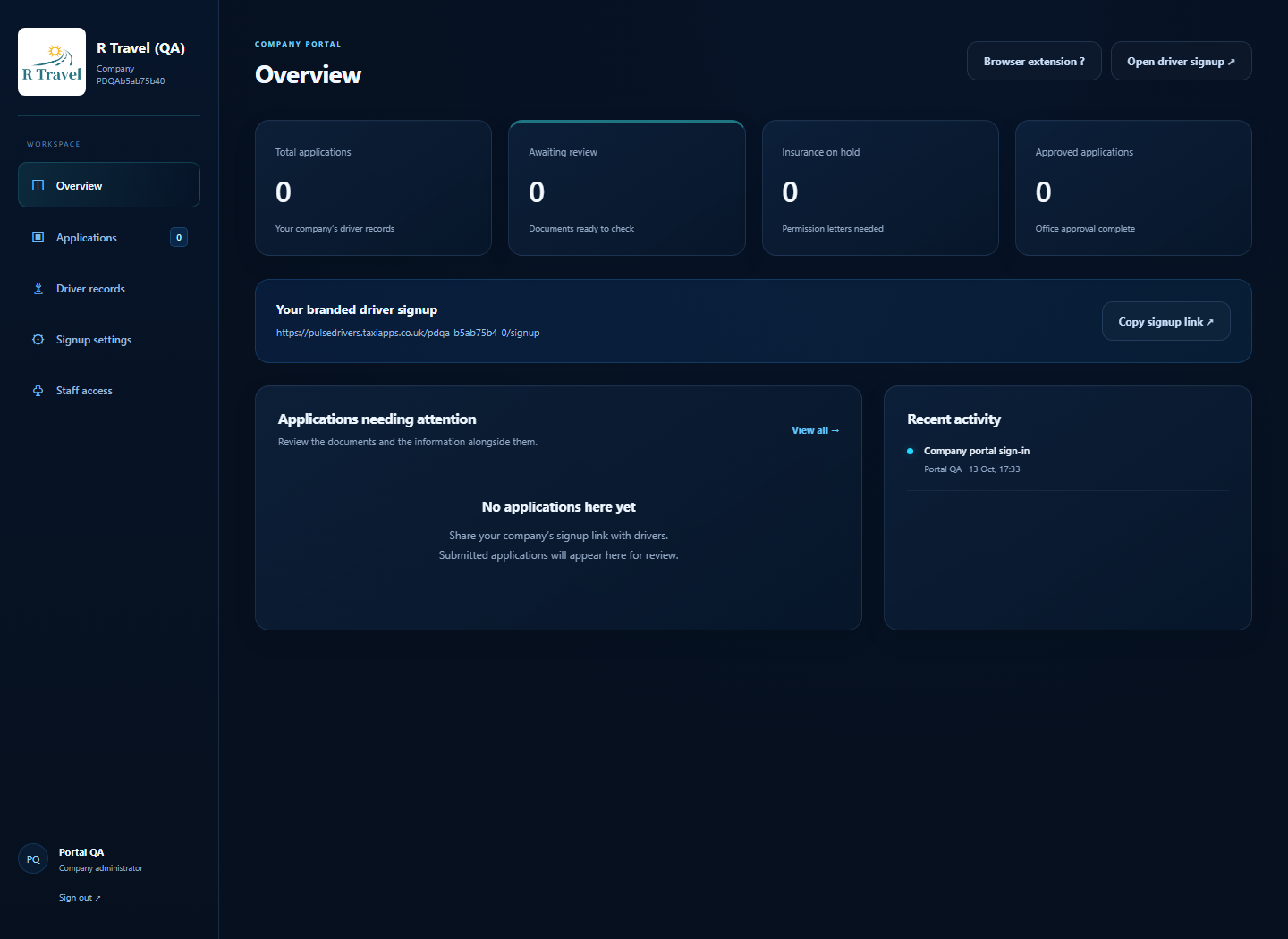
Signup pages for multiple iCabbi sites
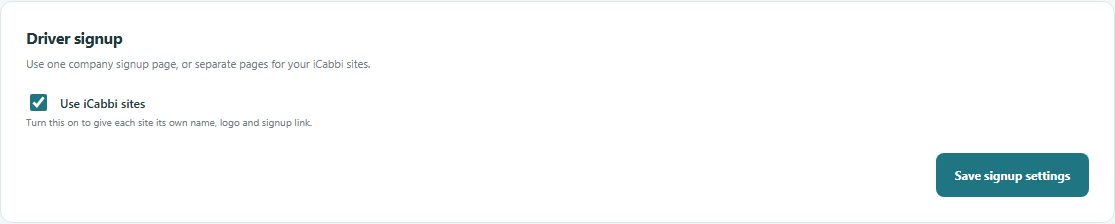
One company COID can contain several iCabbi sites. Open Settings in the company portal to see all sites returned by your company's iCabbi connection.
- Tick Use iCabbi sites under Driver signup and select Save signup settings. The top area expands into the site list. Find the site under Signup pages by iCabbi site.
- Tick Enable this site's signup page.
- Optionally choose a PNG, JPG or WebP logo up to 2 MB for this site. Without a site logo, the page uses your company logo, or the Pulse Drivers logo if no company logo is available. Signup pages and portals automatically use colours from the saved logo; this applies to existing logos as well as new uploads. The company portal follows the company logo. A driver portal follows the recorded signup site or known driver site when sites are in use, otherwise the company logo. Very light colours are darkened for readable buttons and text.
- Select Save site page, then share that site's signup link.
- Each site page uses that site name as its company name. Signup links contain a random numeric code and no company or site name. Repeat for each site you recruit for. Use Refresh iCabbi options if the site list needs updating.
Leave Use iCabbi sites off to use one company signup page and company logo. Switching modes preserves saved site logos and links. Existing applicants retain access to their private status pages.
Applications remember the site they were started through. Approval uses that site when preparing the iCabbi creation plan, even if the company's default site changes. For site-specific signups, office approval also queues the iCabbi site assignment. The system checks the approved driver reference and email, adds the recorded site without replacing existing sites or the primary site, and verifies the result. If the driver record does not exist yet, the application shows Waiting for driver and retries. Check the iCabbi site assignment panel for status and retry controls. Creating the driver and vehicle records is still a separate pending integration step. Changing a site logo does not change the logos of other sites.
To remove a custom site logo, tick Remove site logo and use company logo and save. To stop new applications through a site page, clear its enable box and save. Existing applicants can still use their private status page.
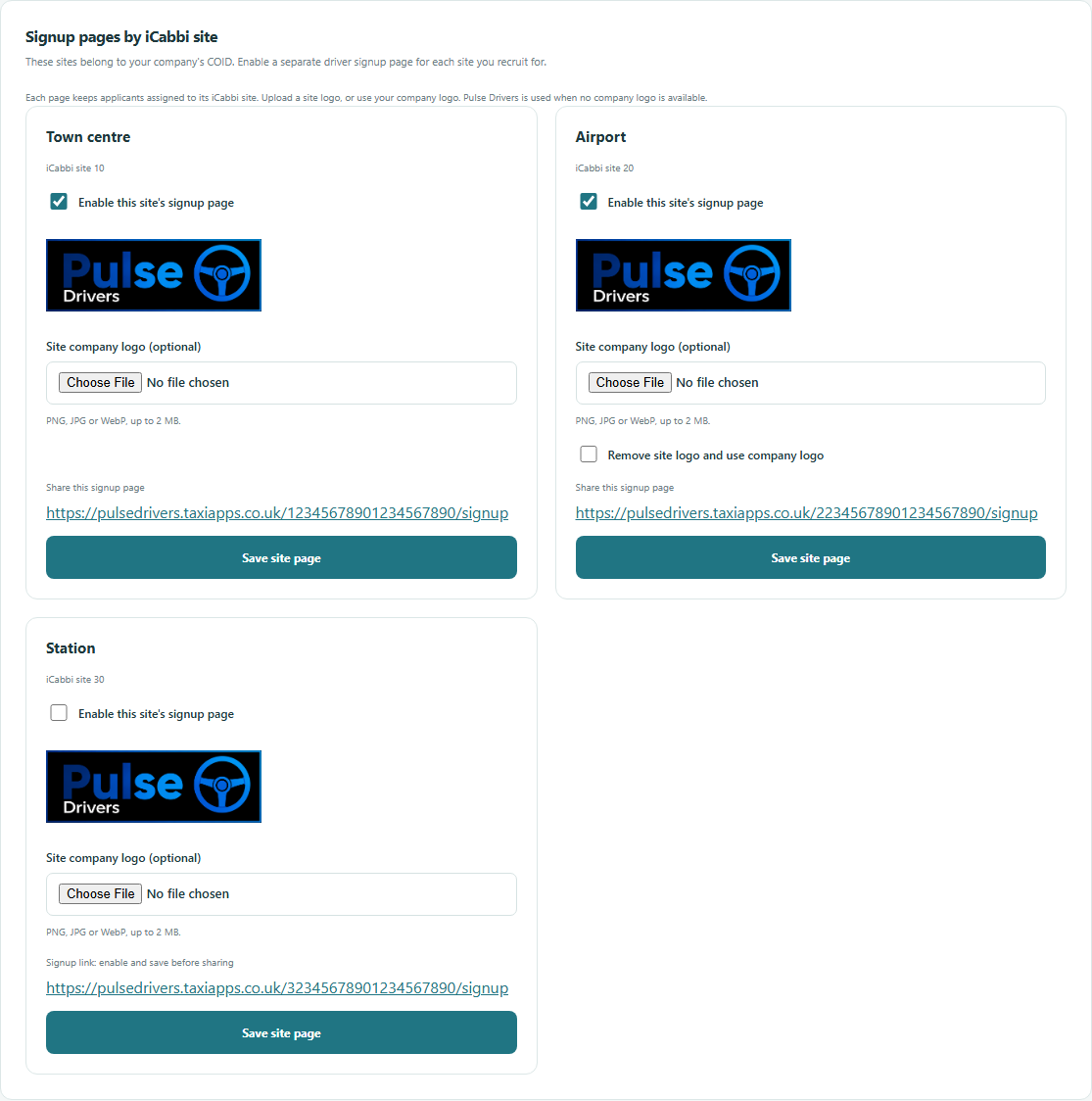
Add staff and choose access
- As a company administrator, open Staff access and add the person's name and email.
- Choose the role and access required. A reviewer handles document reviews; an editor handles news; an administrator manages company settings and staff.
- New staff default to extension-only review access. Choose combined portal and extension access when they need both. Portal access must be granted by an administrator.
- Send the welcome email. It includes login details, browser store links, pinning instructions and the relevant user manual.
Keep access current when staff responsibilities change or someone leaves. Do not share accounts. Pulse-linked owner accounts are managed through Pulse, and the last active administrator cannot be removed.
Install and sign in
- Install Pulse Drivers from the Chrome Web Store or Microsoft Edge Add-ons.
- Open your browser's Extensions menu (the puzzle-piece icon). Pin Pulse Drivers to keep its steering-wheel icon visible on the toolbar. In Edge, use Show in toolbar if that is the option displayed.
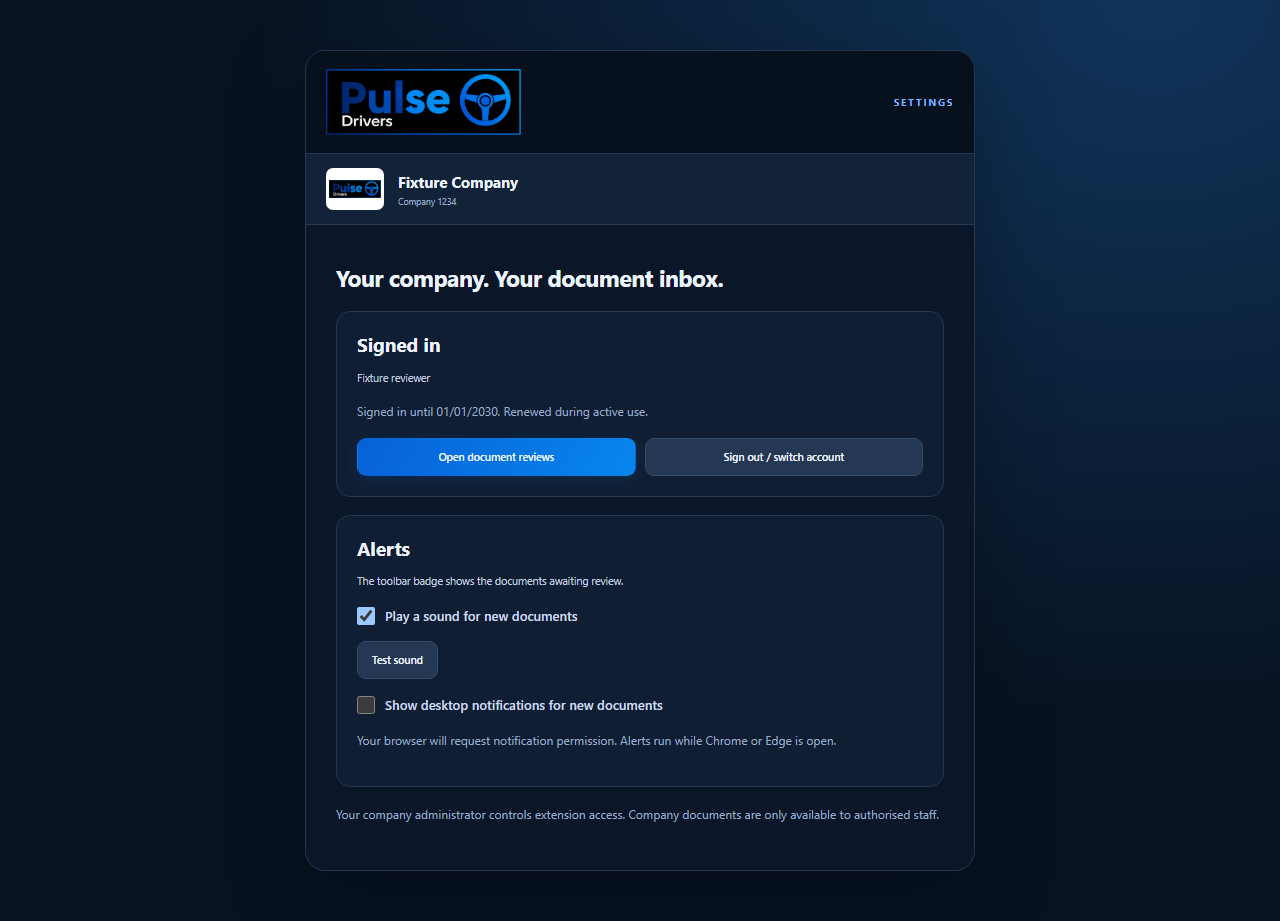
- Open Pulse Drivers, choose Settings and enter your company code, staff email address and password from your welcome email. Enter an authenticator code if requested.
- Keep your password private. Use the password setup link in your welcome email to choose your own password; that link expires after 24 hours.
Staff accounts and driver accounts have different purposes. Use your staff invitation for the extension. A driver's document portal login does not grant review access.
Review documents
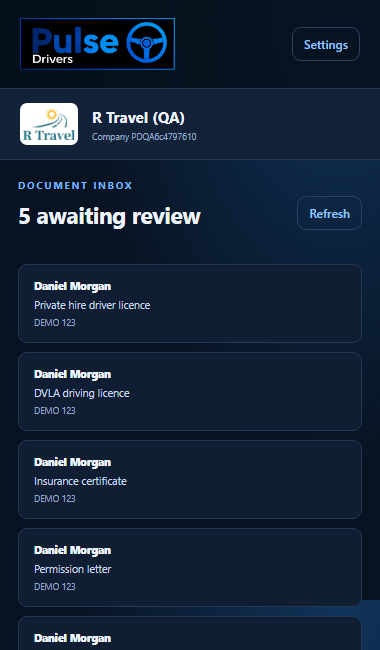
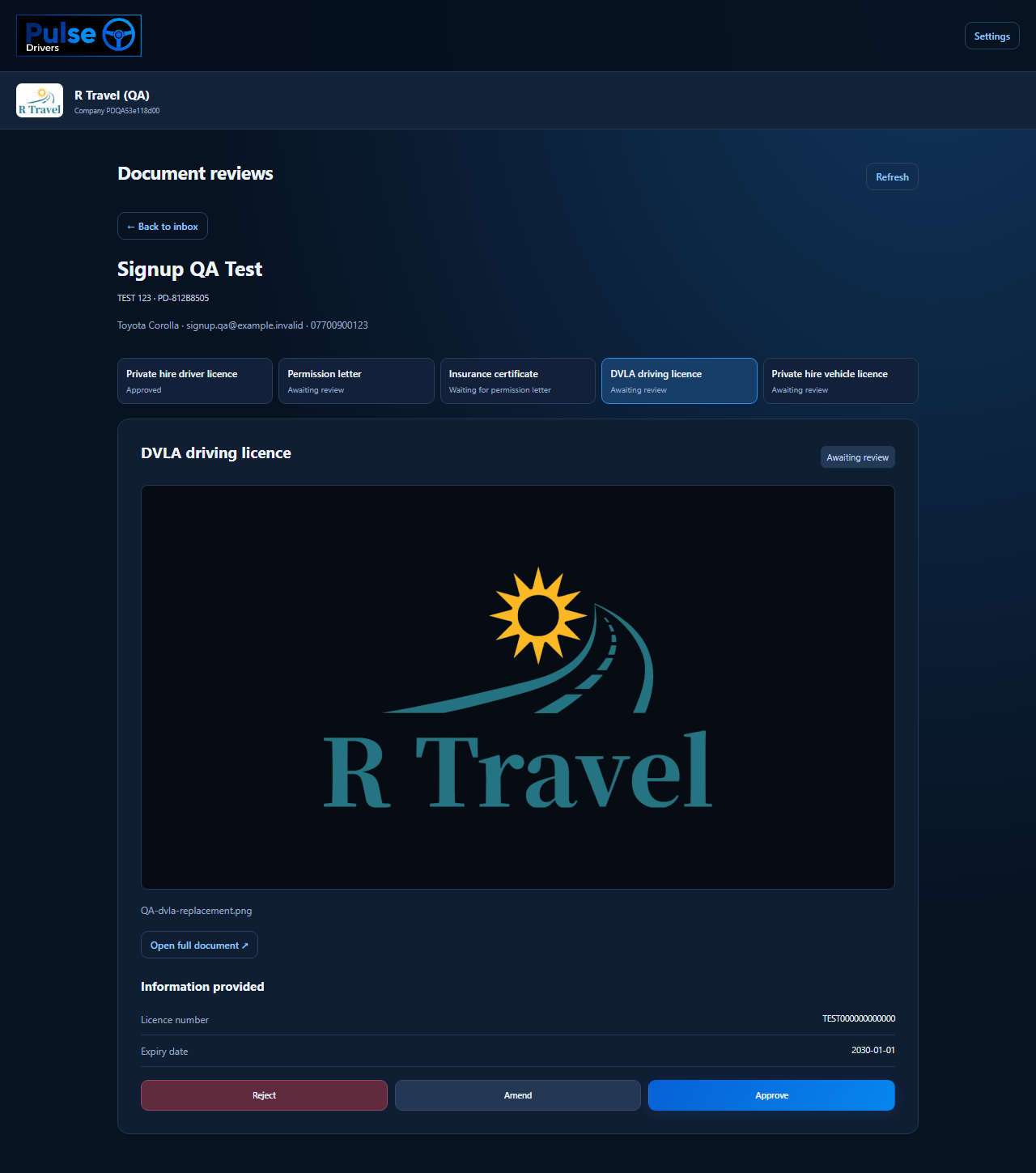
- Click the toolbar icon to see documents awaiting review. Choose a document to open the review side panel. You can also open Document Reviews from Settings.
- Check the driver reference, document type, image or PDF, document number, expiry date and vehicle registration where applicable. Use the preview controls to inspect the file.
- Choose the appropriate action below. Wait for the result before moving to the next document.
| Action | When to use it |
|---|---|
| Reject | The document is unsuitable, incorrect or unreadable. Enter a clear reason so the driver knows what to fix. |
| Amend | Correct the available document details before approval. Saving amendments leaves the document pending; review and approve it separately. |
| Approve | The file and details are correct. For existing-driver updates, the system must confirm the relevant iCabbi changes before completing normal approval. |
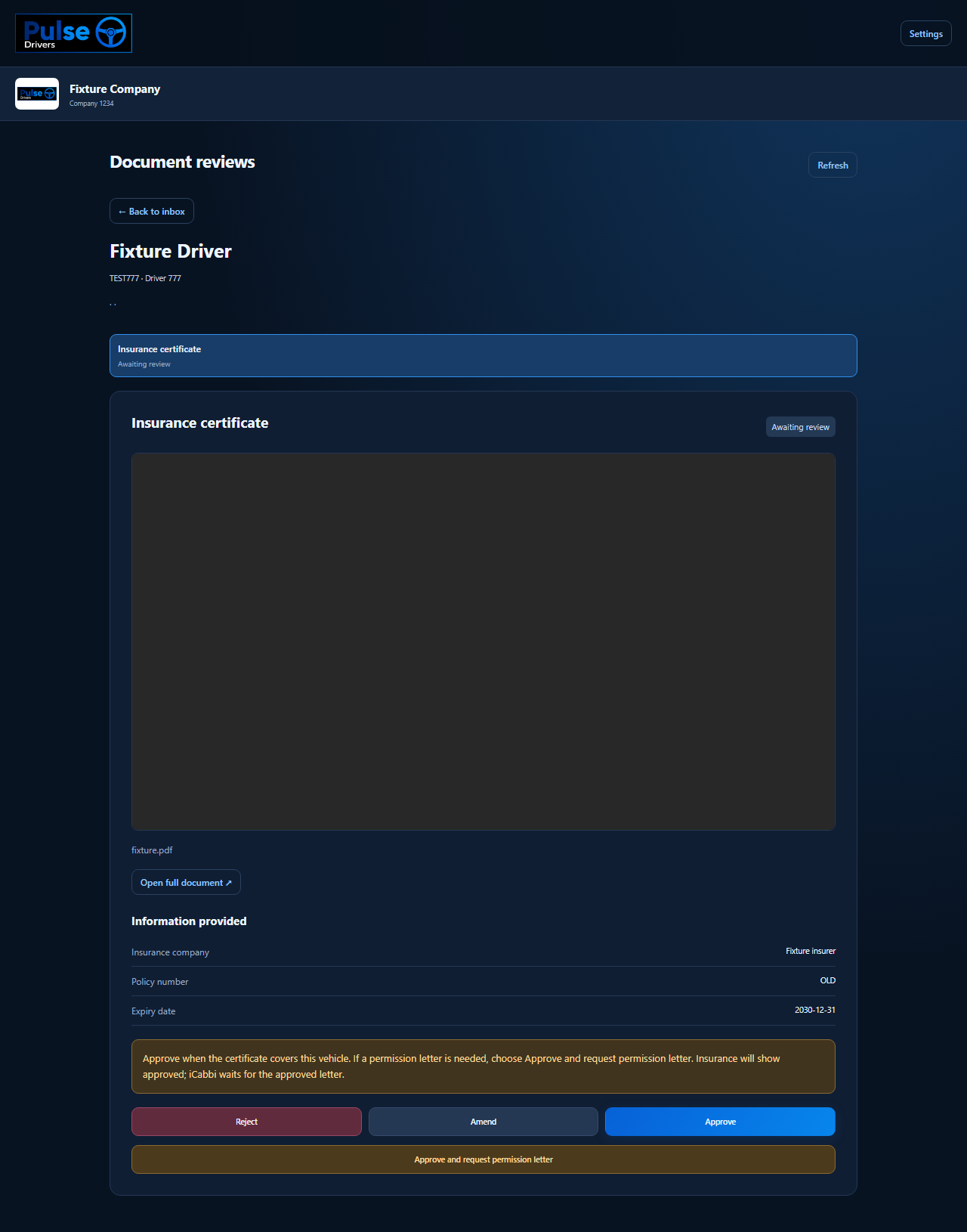
| Approve and request permission letter | Insurance only. Approve the insurance file and ask the driver for the required permission letter. iCabbi waits for that letter to be approved. |
Successful approval removes the document from the pending queue. If another reviewer has already changed it, refresh and check its current status before acting again.
Insurance and permission letters
Use Approve and request permission letter when the insurance is acceptable but a permission letter is required.
- The insurance shows Approved, with a message explaining that a permission letter is still needed. The driver is asked to upload it.
- Review the uploaded Permission Letter and approve it only when it covers the correct driver and vehicle.
- The system checks that the approved letter matches the driver and registration and was approved after the insurance request. It then applies and verifies the deferred insurance update in iCabbi.
A pending or rejected letter does not release the iCabbi update. Expired insurance, a changed vehicle or a failed iCabbi check can also prevent completion. Investigate the message shown and contact your administrator if the update remains outstanding.
Approved insurance awaiting a permission letter is an intentional waiting state. Approval of the insurance file alone does not mean iCabbi has been updated.
Badges, sound and notifications
The toolbar badge shows the pending document count. While your browser is open, the extension checks periodically, normally about once a minute.
- Sound: enable or disable it in Settings and use Test sound to check your browser and device volume. Sound plays for newly arriving documents; an unchanged queue does not keep sounding. The initial queue at sign-in is treated as a starting point.
- Desktop notifications: these are optional and require browser permission. They are separate from sound.
- Visibility: pin the icon and keep the browser running to receive checks and alerts. Alerts may be affected by device sleep or browser restrictions.
Driver self-service portal
Invite a driver from Driver records after checking their email address. The invitation contains the driver portal address, company code and temporary password. The temporary password expires in 24 hours and must be changed at first sign-in.
The driver portal shows company news. Where more than one news item is available, use the arrows to move between items. Its tabs open overlays:
- Driver documents: view current details and upload replacements.
- My details: check the personal and vehicle information available from iCabbi. Ask the office to correct information that cannot be edited here.
- Account: change the password. Sign in again after changing it.
Upload a document
The document list contains Driving Licence, Private Hire Licence, Private Hire Vehicle Licence and Insurance Certificate. Permission Letter appears when required. Existing document details can be shown even when no historical file is available.
- Open Driver documents and find the relevant document.
- Choose its individual Update document button when available. Approved documents with complete details do not need replacement until the renewal window opens, 30 days before expiry. Missing or expired information also enables updating.
- Check the prefilled information, enter any missing details and select a clear PDF, JPG, PNG or WebP file, up to 10 MB.
- Submit and wait for the company's review. Check the displayed status and any reason or request for further information.
Pending means the upload awaits review. Approved means the file has been accepted; an insurance permission-letter message can still indicate that the iCabbi update is waiting. If rejected, follow the reviewer's reason and upload the corrected document when available.
Upload checklist: choose the correct document type, include all edges, make sure the text is readable, and check the number, expiry and registration before submitting.
Approved files and Google Drive
Company administrators can connect Google Drive in Settings. Choose the storage connection option, sign in to the intended Google account and allow the requested file access. Confirm that the portal reports a connected account.
Approved files are saved under My Drive / Driver Docs / Company CODE / Driver REF in the connected Google account. Driver folders are created as files are saved.
| Company setup | After approval |
|---|---|
| Google Drive connected | The system uploads and verifies the document, then deletes its temporary local copy. |
| No storage connected | The system emails the document as an attachment to the company's setup contact email, then deletes its temporary local copy after the mail server accepts delivery. |
| Storage or email delivery fails | The file is retained for retry. Check the delivery status and error; resolve the connection or email problem and use Retry delivery where available. |
A failing Google Drive connection does not automatically switch delivery to email. Keep the setup contact email correct and check its mailbox and spam filtering. Mail-server acceptance does not guarantee that a recipient has read or retained the attachment.
Changing the connected Google account does not move files from the old account. Keep access to the original account and arrange any required transfer before disconnecting it. Your company is responsible for its external storage access, retention and backups; TaxiApps does not control Google's service availability or account permissions.
Publish company news
Use the news tools available to your role to prepare a draft, add the available text and images, and publish it when ready. Check the driver-facing result. Archive outdated items so drivers see current information. Drivers can move between published news items using the carousel arrows.
Troubleshooting and support
| Problem | What to do |
|---|---|
| Company code, email or password incorrect | Check the company code and the staff email in your invitation. Retype the password without surrounding spaces. Ask your administrator to check that the account is active and has extension access. |
| Cannot open the company portal | An extension-only account needs a company administrator to grant portal access. |
| Approval remains pending | Read the error. If iCabbi has not confirmed the new details, check the document fields, driver and linked vehicle. Retry after resolving the issue; contact your administrator if it persists. |
| No sound or notifications | Use Test sound, check the sound switch and device volume, and allow optional browser notifications. An unchanged queue does not trigger another sound. |
| Missing review buttons or different behaviour | Check for an extension update through your browser's extension management page. Store updates must be available before the browser can install them. |
| Session expired or access denied | Sign in again. If access is still denied, ask your administrator to check your account and company access. |
When reporting a problem, provide the company code, driver reference, document type, approximate time and exact error message. Never send passwords or API secrets. Share document images only through your company's approved secure support process.