
Install and sign in
- Install Pulse Drivers from the Chrome Web Store or Microsoft Edge Add-ons.
- Open your browser's Extensions menu (the puzzle-piece icon). Pin Pulse Drivers to keep its steering-wheel icon visible on the toolbar. In Edge, use Show in toolbar if that is the option displayed.
- Open Pulse Drivers, choose Settings and enter your company code, staff email address and password from your welcome email. Enter an authenticator code if requested.
- Keep your password private. Use the password setup link in your welcome email to choose your own password; that link expires after 24 hours.
Staff accounts and driver accounts have different purposes. Use your staff invitation for the extension. A driver's document portal login does not grant review access.
Review documents
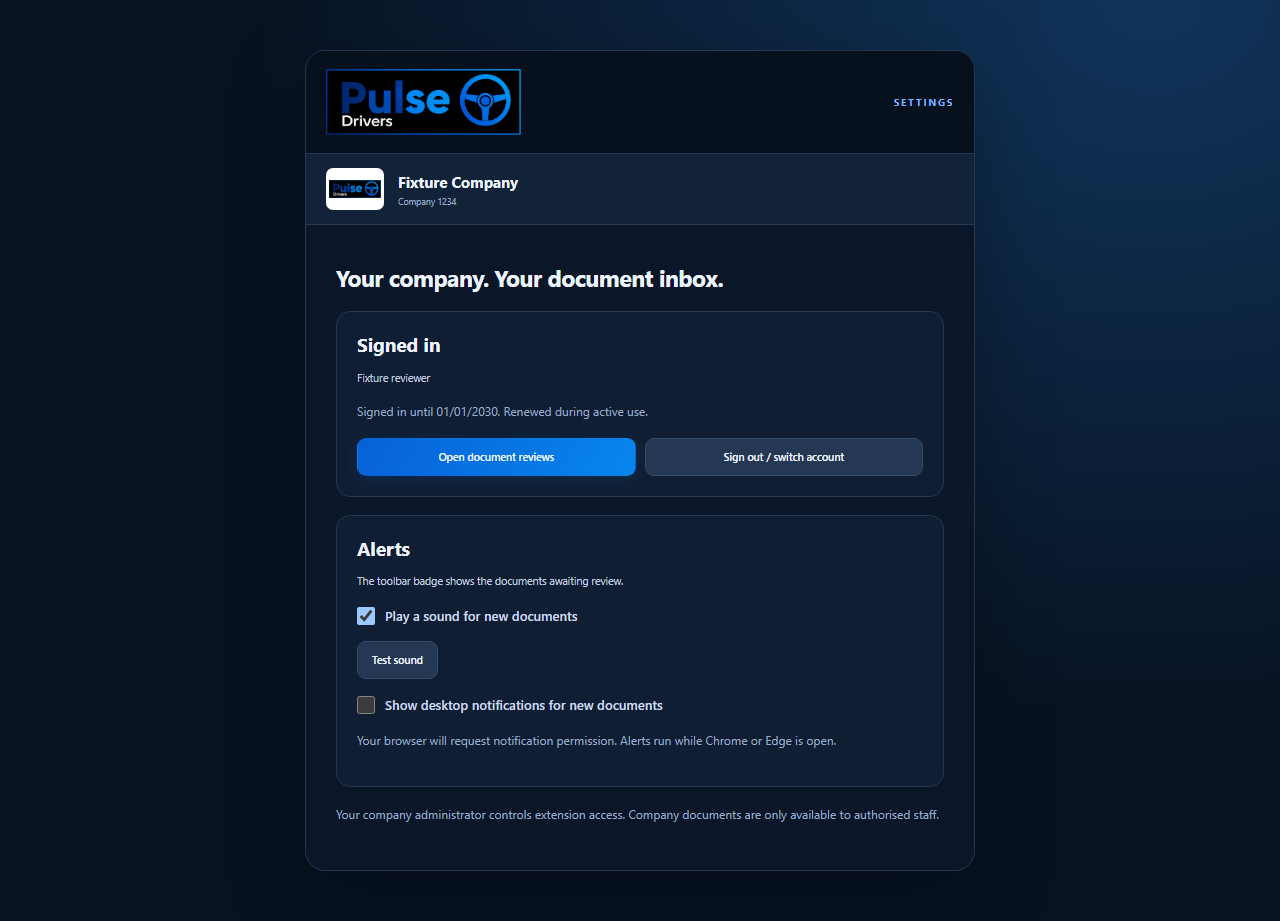
- Click the toolbar icon to see documents awaiting review. Choose a document to open the review side panel. You can also open Document Reviews from Settings.
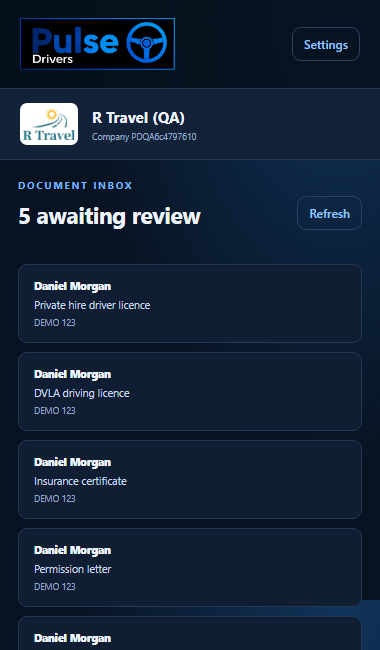
- Check the driver reference, document type, image or PDF, document number, expiry date and vehicle registration where applicable. Use the preview controls to inspect the file.
- Choose the appropriate action below. Wait for the result before moving to the next document.
| Action | When to use it |
|---|---|
| Reject | The document is unsuitable, incorrect or unreadable. Enter a clear reason so the driver knows what to fix. |
| Amend | Correct the available document details before approval. Saving amendments leaves the document pending; review and approve it separately. |
| Approve | The file and details are correct. For existing-driver updates, the system must confirm the relevant iCabbi changes before completing normal approval. |
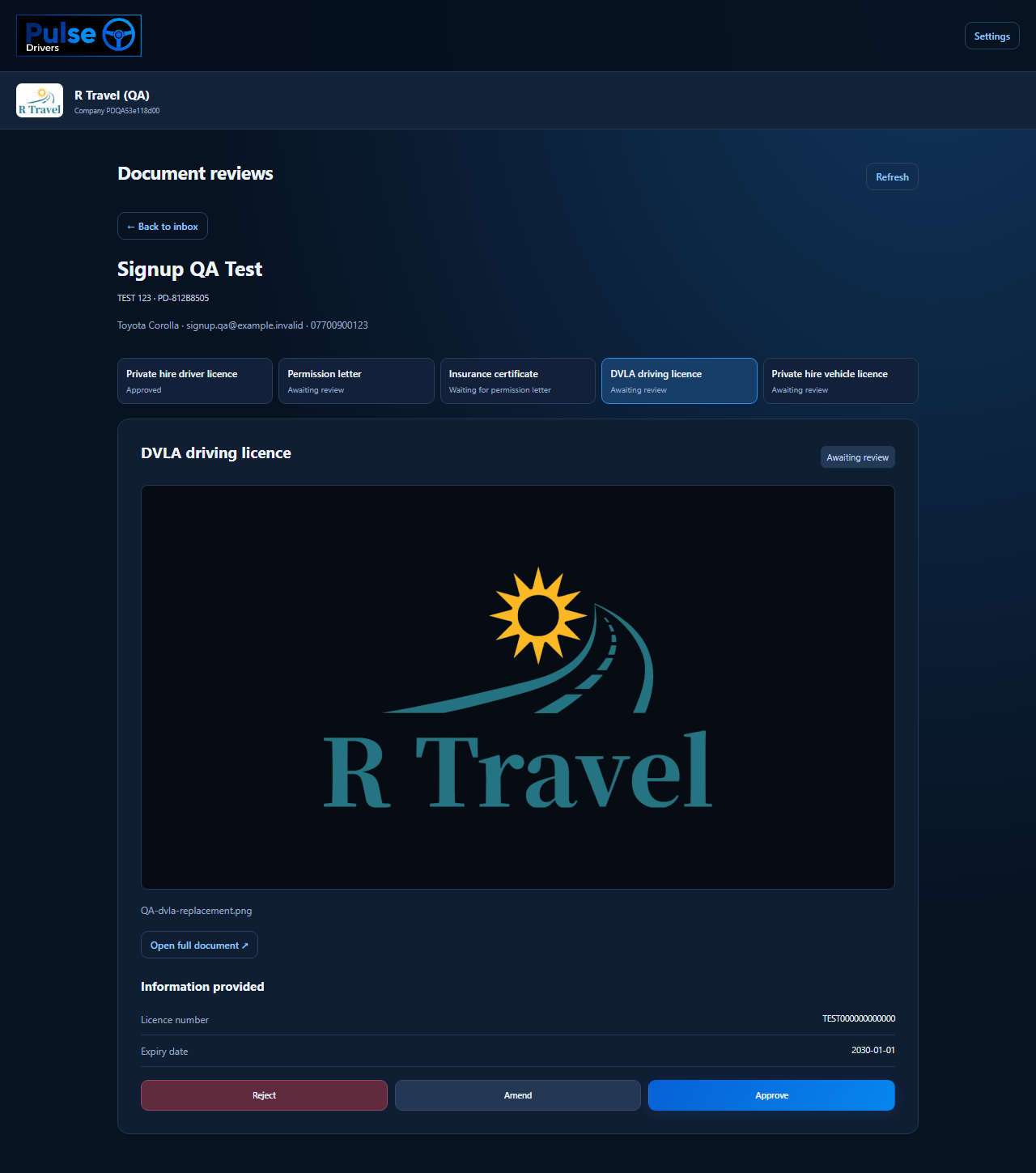
| Approve and request permission letter | Insurance only. Approve the insurance file and ask the driver for the required permission letter. iCabbi waits for that letter to be approved. |
Successful approval removes the document from the pending queue. If another reviewer has already changed it, refresh and check its current status before acting again.
Insurance and permission letters
Use Approve and request permission letter when the insurance is acceptable but a permission letter is required.
- The insurance shows Approved, with a message explaining that a permission letter is still needed. The driver is asked to upload it.
- Review the uploaded Permission Letter and approve it only when it covers the correct driver and vehicle.
- The system checks that the approved letter matches the driver and registration and was approved after the insurance request. It then applies and verifies the deferred insurance update in iCabbi.
A pending or rejected letter does not release the iCabbi update. Expired insurance, a changed vehicle or a failed iCabbi check can also prevent completion. Investigate the message shown and contact your administrator if the update remains outstanding.
Approved insurance awaiting a permission letter is an intentional waiting state. Approval of the insurance file alone does not mean iCabbi has been updated.
Badges, sound and notifications
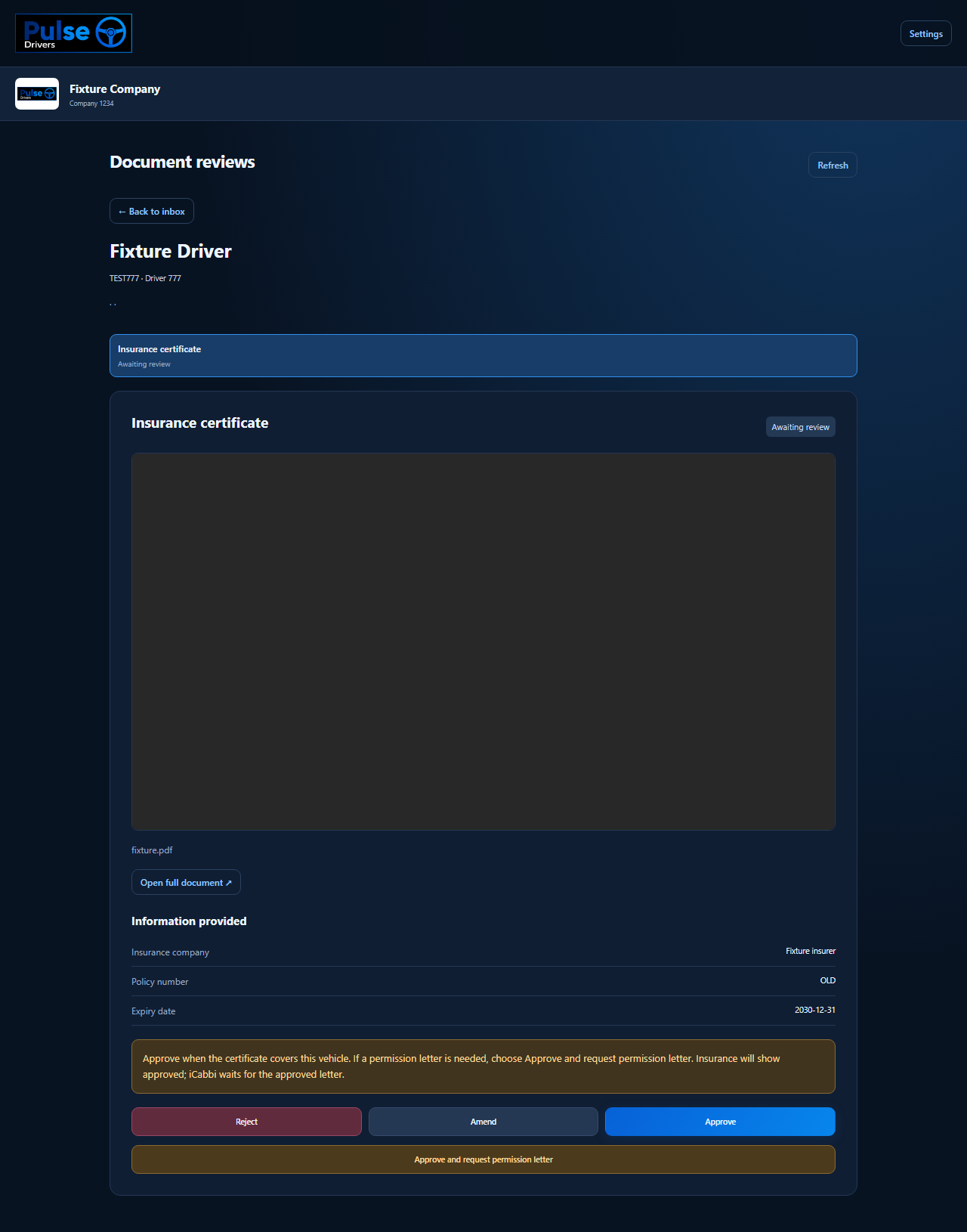
The toolbar badge shows the pending document count. While your browser is open, the extension checks periodically, normally about once a minute.
- Sound: enable or disable it in Settings and use Test sound to check your browser and device volume. Sound plays for newly arriving documents; an unchanged queue does not keep sounding. The initial queue at sign-in is treated as a starting point.
- Desktop notifications: these are optional and require browser permission. They are separate from sound.
- Visibility: pin the icon and keep the browser running to receive checks and alerts. Alerts may be affected by device sleep or browser restrictions.
Troubleshooting and support
| Problem | What to do |
|---|---|
| Company code, email or password incorrect | Check the company code and the staff email in your invitation. Retype the password without surrounding spaces. Ask your administrator to check that the account is active and has extension access. |
| Cannot open the company portal | An extension-only account needs a company administrator to grant portal access. |
| Approval remains pending | Read the error. If iCabbi has not confirmed the new details, check the document fields, driver and linked vehicle. Retry after resolving the issue; contact your administrator if it persists. |
| No sound or notifications | Use Test sound, check the sound switch and device volume, and allow optional browser notifications. An unchanged queue does not trigger another sound. |
| Missing review buttons or different behaviour | Check for an extension update through your browser's extension management page. Store updates must be available before the browser can install them. |
| Session expired or access denied | Sign in again. If access is still denied, ask your administrator to check your account and company access. |
When reporting a problem, provide the company code, driver reference, document type, approximate time and exact error message. Never send passwords or API secrets. Share document images only through your company's approved secure support process.